はじめに
先日、AWS CLIに新しい認証コマンド aws login が追加された。
これまでは aws configure でアクセスキーを設定するか、aws configure sso でSSO設定を行うのが一般的だったが、aws login を使うことで、より簡単に、かつセキュアにAWSへのプログラムアクセスが可能になる。
- Simplified developer access to AWS with ‘aws login’
https://aws.amazon.com/jp/blogs/security/simplified-developer-access-to-aws-with-aws-login/
今回は、この aws login を実際に試してみる。
環境
Windows 11 Professional
WSL2 Ubuntu 24.04 LTS
AWS CLI v2.32.0
※ aws login コマンドを使用するには、AWS CLI バージョン 2.32.0 以上が必要である。
aws login とは
aws login は、長期的なアクセスキー(Access Key ID / Secret Access Key)を発行・管理することなく、AWSマネジメントコンソールのログイン情報を使って一時的な認証情報を取得できる機能である。
具体的には以下のようなメリットがある。
- 長期的なアクセスキーを発行する必要がない
- コンソールにログインできれば、そのままCLIも利用できる
- 一時的な認証情報が使われるため、セキュリティリスクが低い
aws configureのような面倒な初期設定が不要
使ってみる
1. AWS CLIのアップデート
まず、AWS CLIのバージョンを確認する。
aws --versionバージョンが 2.32.0 未満の場合はアップデートを行う。
curl "https://awscli.amazonaws.com/awscli-exe-linux-x86_64.zip" -o "awscliv2.zip"
unzip awscliv2.zip
sudo ./aws/install --bin-dir /usr/local/bin --install-dir /usr/local/aws-cli --update
ログ
curl "https://awscli.amazonaws.com/awscli-exe-linux-x86_64.zip" -o "awscliv2.zip"         ✔ │ 13:12:41
  % Total    % Received % Xferd  Average Speed   Time    Time     Time  Current
                                 Dload  Upload   Total   Spent    Left  Speed
100 59.8M  100 59.8M    0     0  66.9M      0 --:--:-- --:--:-- --:--:-- 66.9M

...

unzip awscliv2.zip                                                                        ✔ │ 13:12:54
Archive:  awscliv2.zip
   creating: aws/
(略)
  inflating: aws/dist/wheel-0.45.1.dist-info/WHEEL
  inflating: aws/dist/wheel-0.45.1.dist-info/METADATA
  inflating: aws/dist/wheel-0.45.1.dist-info/INSTALLER

...

sudo ./aws/install --bin-dir /usr/local/bin --install-dir /usr/local/aws-cli --update
You can now run: /usr/local/bin/aws --version

...

 /usr/local/bin/aws --version
aws-cli/2.32.3 Python/3.13.9 Linux/5.15.153.1-microsoft-standard-WSL2 exe/x86_64.ubuntu.24
2. aws login の実行
IAMユーザー(またはルートユーザー)としてログインしてみる。
aws login実行すると、デフォルトリージョンの設定がない場合はリージョンを聞かれる。
今回は、ap-northeast-1 (東京)を選択した。
You must specify a region. You can also configure your region by running "aws configure".
Default region name [None]: ap-northeast-1
ログ
aws login
No AWS region has been configured. The AWS region is the geographic location of your AWS resources.

If you have used AWS before and already have resources in your account, specify which region they were created in. If you have not created resources in your account before, you can pick the region closest to you: https://docs.aws.amazon.com/global-infrastructure/latest/regions/aws-regions.html.

You are able to change the region in the CLI at any time with the command "aws configure set region NEW_REGION".
AWS Region [us-east-1]: ap-northeast-1
Attempting to open your default browser.
If the browser does not open, open the following URL:

[URL]

/usr/bin/xdg-open: 882: x-www-browser: not found
/usr/bin/xdg-open: 882: firefox: not found
/usr/bin/xdg-open: 882: iceweasel: not found
/usr/bin/xdg-open: 882: seamonkey: not found
/usr/bin/xdg-open: 882: mozilla: not found
/usr/bin/xdg-open: 882: epiphany: not found
/usr/bin/xdg-open: 882: konqueror: not found
/usr/bin/xdg-open: 882: chromium: not found
/usr/bin/xdg-open: 882: chromium-browser: not found
/usr/bin/xdg-open: 882: google-chrome: not found
/usr/bin/xdg-open: 882: www-browser: not found
/usr/bin/xdg-open: 882: links2: not found
/usr/bin/xdg-open: 882: elinks: not found
/usr/bin/xdg-open: 882: links: not found
/usr/bin/xdg-open: 882: lynx: not found
/usr/bin/xdg-open: 882: w3m: not found
xdg-open: no method available for opening [URL]
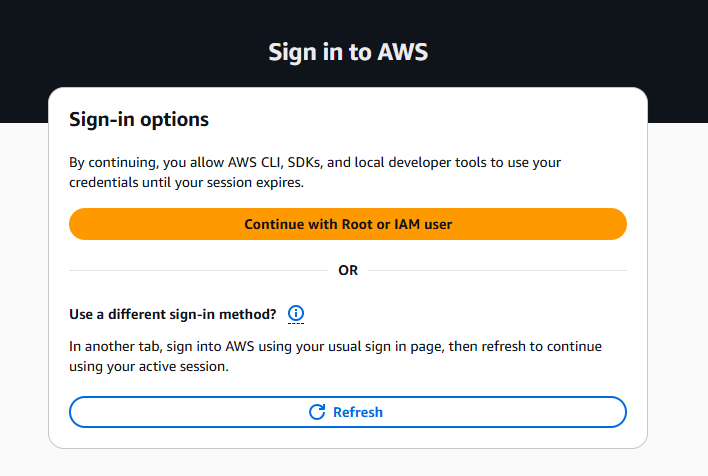
URLをコピーしてブラウザに貼り付けてアクセスをした。
3. ブラウザでの認証
コマンドを実行すると、自動的にブラウザが開き(またはURLが表示され)、AWSマネジメントコンソールのログイン画面に遷移する。
※ WSLで xdg-openで参照できるブラウザがなかったので自動的に開かれなかった。
今回は、URLをコピペしてブラウザに貼り付けてアクセスをしている。
- すでにブラウザでAWSコンソールにログイン済みの場合は、「Continue with an active session」のような画面が表示されるので、そのまま進める。
- 未ログインの場合は、通常通りIAMユーザー名とパスワード(MFAがあればMFAも)でログインする。
認証が完了すると、ブラウザに「Success!」と表示され、ターミナルに戻る。
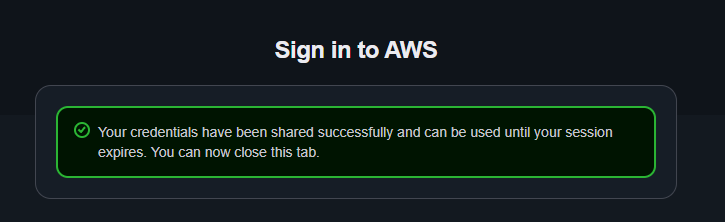
以下がターミナルに出力された。
Updated profile default to use arn:aws:iam::[アカウントID]:[IAMユーザ名] credentials.4. 認証の確認
ターミナルに戻ると、プロンプトが返ってきているはずである。aws sts get-caller-identity コマンドで、正しく認証されているか確認する。
aws sts get-caller-identity{
"UserId": "AIDAXXXXXXXXXXXXXXXXX",
"Account": "123456789012",
"Arn": "arn:aws:iam::123456789012:user/test-user"
}これで、通常のAWS CLIコマンドが実行可能になる。
aws loginした状態での確認
実際にリソースにアクセスできるか確認するためにいくつかのコマンドを試してみる。
S3 リソースの確認
aws s3 lsログ
aws s3 ls
2025-11-04 18:01:08 game-captures
2024-11-10 08:44:23 lambda-layer-for-nodej
2024-11-08 11:40:30 media-converted-game-captures
VPC リソースの確認
デフォルトVPCなどが存在するか確認してみる。
aws ec2 describe-vpcsログ
{
    "Vpcs": [
        {
            "OwnerId": "123456789012",
            "InstanceTenancy": "default",
            "CidrBlockAssociationSet": [
                {
                    "AssociationId": "vpc-cidr-assoc-xxxxxxxx",
                    "CidrBlock": "172.31.0.0/16",
                    "CidrBlockState": {
                        "State": "associated"
                    }
                }
            ],
            "IsDefault": true,
            "BlockPublicAccessStates": {
                "InternetGatewayBlockMode": "off"
            },
            "VpcId": "vpc-xxxxxxxx",
            "State": "available",
            "CidrBlock": "172.31.0.0/16",
            "DhcpOptionsId": "dopt-xxxxxxxx"
        }
    ]
}
プロファイルでの利用
特定のプロファイル名でログイン情報を保存したい場合は、--profile オプションを使用する。
aws login --profile my-profile利用時も同様にプロファイルを指定する。
aws s3 ls --profile my-profilesetup-aws-configure-sso との違い
以前紹介した aws configure sso との違いについて触れておく。
| 機能 | aws login | aws configure sso |
|---|---|---|
| 主な用途 | IAMユーザーや既存のコンソールセッションを使った手軽なログイン | IAM Identity Center (SSO) を利用した組織的なアクセス管理 |
| 設定の手間 | ほぼ不要(コマンド一発) | SSO Start URLやリージョンなどの初期設定が必要 |
| 認証情報 | 一時的な認証情報(自動更新) | 一時的な認証情報(自動更新) |
| プロファイル | オプションで指定可能 | プロファイル設定が前提 |
IAM Identity Centerを導入している組織であれば aws configure sso が引き続き便利だが、個人の検証環境や、IAMユーザーを直接使っているケースでは aws login が手軽である。
参考
Simplified developer access to AWS with ‘aws login’
https://aws.amazon.com/jp/blogs/security/simplified-developer-access-to-aws-with-aws-login/AWS CLIの 新機能 aws login コマンドを試してみた
https://dev.classmethod.jp/articles/aws-cli-aws-login/アクセスキーからaws loginへの移行を考える
https://qiita.com/takahash_3/items/dcf78039fcbaea7848a4
おわりに
aws login を使うことで、アクセスキーの管理という煩わしい作業から解放されるのは非常に大きい。
特に、開発環境で「ちょっとCLIを使いたい」という場面で、コンソールにログインさえしていればすぐにCLIが使えるのは便利である。
セキュリティリスクとなる長期的なアクセスキーを減らすためにも、積極的に使っていきたい。